

SC-401 Updated Exam Dumps [2026] Practice Valid Exam Dumps Question
SC-401 Sample with Accurate & Updated Questions
NEW QUESTION # 179
You have a Microsoft 365 E5 tenant that uses a domain named contoso.com.
A user named User 1 sends link based, branded emails that are encrypted by using Microsoft Purview Advanced Message Encryption to the recipients shown in the following table.
For which recipients Can User1 revoke the emails?
- A. Reciptent1, Recipient2. Recipient3, and Recipient4
- B. Reciptent1 and Recipient^ only
- C. Recipient4 only
- D. Recipient1 only
- E. Reclpient3 and Recipients only
Answer: E
NEW QUESTION # 180
SIMULATION
Username and password
Use the following login credentials as needed:
To enter your username, place your cursor in the Sign in box and select the username below.
To enter your password, place your cursor in the Enter password box and select the password below.
Microsoft 365 Username:
[email protected]
Microsoft 365 Password: XXXXXXXXX
If the Microsoft Edge browser or Microsoft 365 portal does not load successfully, select the Microsoft Edge browser icon from the task bar, type the URL "https://admin.microsoft.com", and press Enter.
The following information is for technical support purposes only:
Lab Instance: XXXXXXXXX
Task 5
You need to simulate applying the Confidential - Finance label to all the content in the Exchange emails, the SharePoint sites, and the OneDrive accounts that contain the Credit Card Number sensitive info type.
Answer:
Explanation:
Simulation mode is supported for auto-labeling policies and woven into the workflow. You can't automatically label documents and emails until your policy has run at least one simulation.
Workflow for an auto-labeling policy:
1. Create and configure an auto-labeling policy.
2. Run the policy in simulation mode, which can take 12 hours to complete. The completed simulation triggers an email notification that's sent to the user configured to receive activity alerts.
3. Review the results, and if necessary, refine your policy.
4. Repeat step 3 as needed.
5. Deploy in production.
Creating an auto-labeling policy
Step 1: Sign in to the Microsoft Purview portal > Solutions > Information Protection > Policies > Auto-labeling policies.
Step 2: Select + Create auto-labeling policy. This starts the New policy configuration:
Step 3: For the Choose a label to auto-apply page: Select + Choose a label, select a label from the Choose a sensitivity label pane, and then select Next.
Step 4: For the page Choose info you want this label applied to: Select one of the templates, such as Financial or Privacy [Select Confidential - Finance label]. You can refine your search by using the search or dropdown box for countries or regions. Or, select Custom policy if the templates don't meet your requirements. Select Next.
Step 5: For the page Name your auto-labeling policy: Provide a unique name, and optionally a description to help identify the automatically applied label, locations, and conditions that identify the content to label.
Step 6: For the page Assign admin units: [Keep default]
If you don't want to restrict the policy by using administrative units, or your organization hasn't configured administrative units, keep the default of Full directory.
Step 7: For the page Choose locations where you want to apply the label: Select and specify locations for Exchange, SharePoint, and OneDrive.
Step 8: For the Set up common or advanced rules page: Keep the default of Common rules to define rules that identify content to label across all your selected locations. If you need different rules per location, including some rules that are only available for Exchange, or SharePoint sites and OneDrive accounts, select Advanced rules. Then select Next. [select Advanced rules. Then select Next]
8a. To select a sensitive information type or trainable classifier as a condition, under Content contains, select Add, and then choose Sensitive info types or Trainable classifiers.
8b. Select the the Credit Card Number sensitive info type.
Step 9: Depending on your previous choices, you'll now have an opportunity to create new rules by using conditions and exceptions. [Skip] Step 10: If your policy includes the Exchange location: Specify optional configurations [Skip] Step 11: For the Decide if you want to test out the policy now or later page: Select Run policy in simulation mode if you're ready to run the auto-labeling policy now, in simulation mode.
Step 12: For the Summary page: Review the configuration of your auto-labeling policy and make any changes that needed, and complete the configuration.
Reference:
https://learn.microsoft.com/en-us/purview/apply-sensitivity-label-automatically
NEW QUESTION # 181
SIMULATION
Username and password
Use the following login credentials as needed:
To enter your username, place your cursor in the Sign in box and select the username below.
To enter your password, place your cursor in the Enter password box and select the password below.
Microsoft 365 Username:
[email protected]
Microsoft 365 Password: XXXXXXXXX
If the Microsoft Edge browser or Microsoft 365 portal does not load successfully, select the Microsoft Edge browser icon from the task bar, type the URL "https://admin.microsoft.com", and press Enter.
The following information is for technical support purposes only:
Lab Instance: XXXXXXXXX
Task 5
You need to simulate applying the Confidential - Finance label to all the content in the Exchange emails, the SharePoint sites, and the OneDrive accounts that contain the Credit Card Number sensitive info type.
Answer:
Explanation:
Simulation mode is supported for auto-labeling policies and woven into the workflow. You can't automatically label documents and emails until your policy has run at least one simulation.
Workflow for an auto-labeling policy:
1. Create and configure an auto-labeling policy.
2. Run the policy in simulation mode, which can take 12 hours to complete. The completed simulation triggers an email notification that's sent to the user configured to receive activity alerts.
3. Review the results, and if necessary, refine your policy.
4. Repeat step 3 as needed.
5. Deploy in production.
--
Creating an auto-labeling policy
Step 1: Sign in to the Microsoft Purview portal > Solutions > Information Protection > Policies > Auto-labeling policies.
Step 2: Select + Create auto-labeling policy. This starts the New policy configuration:
Step 3: For the Choose a label to auto-apply page: Select + Choose a label, select a label from the Choose a sensitivity label pane, and then select Next.
Step 4: For the page Choose info you want this label applied to: Select one of the templates, such as Financial or Privacy [Select Confidential - Finance label]. You can refine your search by using the search or dropdown box for countries or regions. Or, select Custom policy if the templates don't meet your requirements. Select Next.
Step 5: For the page Name your auto-labeling policy: Provide a unique name, and optionally a description to help identify the automatically applied label, locations, and conditions that identify the content to label.
Step 6: For the page Assign admin units: [Keep default]
If you don't want to restrict the policy by using administrative units, or your organization hasn't configured administrative units, keep the default of Full directory.
Step 7: For the page Choose locations where you want to apply the label: Select and specify locations for Exchange, SharePoint, and OneDrive.
Step 8: For the Set up common or advanced rules page: Keep the default of Common rules to define rules that identify content to label across all your selected locations. If you need different rules per location, including some rules that are only available for Exchange, or SharePoint sites and OneDrive accounts, select Advanced rules. Then select Next. [select Advanced rules. Then select Next]
8a. To select a sensitive information type or trainable classifier as a condition, under Content contains, select Add, and then choose Sensitive info types or Trainable classifiers.
8b. Select the the Credit Card Number sensitive info type.
Step 9: Depending on your previous choices, you'll now have an opportunity to create new rules by using conditions and exceptions. [Skip] Step 10: If your policy includes the Exchange location: Specify optional configurations [Skip] Step 11: For the Decide if you want to test out the policy now or later page: Select Run policy in simulation mode if you're ready to run the auto-labeling policy now, in simulation mode.
Step 12: For the Summary page: Review the configuration of your auto-labeling policy and make any changes that needed, and complete the configuration.
Reference:
https://learn.microsoft.com/en-us/purview/apply-sensitivity-label-automatically
NEW QUESTION # 182
You have a Microsoft 365 E5 subscription.
You create a sensitivity label named Label1 and publish Label1 to all users and groups.
You have the following files on a computer:
- File1.doc
- File2.docx
- File3.xlsx
- File4.txt
You need to identify which files can have Label1 applied.
Which files should you identify?
- A. File1.doc, File2.docx, and File3.xlsx only
- B. File2.docx and File3.xlsx only
- C. File2.docx only
- D. File1.doc, File2.docx, File3.xlsx, and File4.txt
Answer: B
Explanation:
https://learn.microsoft.com/en-us/purview/sensitivity-labels-office-apps#office-file-types-supported
NEW QUESTION # 183
You have a Microsoft 365 E5 subscription.
You need to ensure that encrypted email messages sent to an external recipient can be revoked or will expire within seven days.
What should you configure first?
- A. a Conditional Access policy
- B. a mail flow rule
- C. a sensitivity label
- D. a custom branding template
Answer: D
Explanation:
To ensure that encrypted email messages sent to external recipients can be revoked or expire within seven days, you need to configure a sensitivity label with encryption settings in Microsoft Purview Information Protection. A sensitivity label allows you to encrypt emails and documents, set expiration policies (e.g., emails expire after 7 days), and enable email revocation How to configure it?
# Go to Microsoft Purview compliance portal # Information Protection
# Create a sensitivity label
# Enable encryption and configure the content expiration policy
# Publish the label to users
NEW QUESTION # 184
You have a Microsoft 365 E5 subscription that contains the groups shown in the following table.
The subscription contains the resources shown in the following table.
You create a sensitivity label named Label1.
You need to publish Label1 and have the label apply automatically.
To what can you publish Label1, and to what can Label1 be auto-applied? To answer, select the appropriate options in the answer area.
NOTE: Each correct selection is worth one point.
Answer:
Explanation:
Explanation:
Box 1: Publishing a Sensitivity Label
Sensitivity labels can be published to Microsoft 365 groups, security groups, SharePoint Online sites, and Microsoft Teams. Since we have:
# Group1 (Microsoft 365 group) - Supported
# Group2 (Security group) - Supported
# Site1 (SharePoint Online site) - Supported
# Team1 (Microsoft Teams team) - Supported
This means we can publish Label1 to Group1, Group2, Site1, and Team1.
Box 2: Auto-Applying a Sensitivity Label
Auto-apply policies for sensitivity labels work on:
# SharePoint Online sites (documents)
# OneDrive (documents)
# Exchange email (messages)
However, labels cannot be auto-applied to Microsoft 365 groups or Teams directly because labels are applied to files and emails, not to groups or Teams as entities. Since Site1 (a SharePoint Online site) supports auto- apply, it is the correct option.
NEW QUESTION # 185
Hotspot Question
You have a Microsoft 365 E5 tenant that contains the users shown in the following table.
You have a retention policy that has the following configurations:
- Retain items for a specific period: 5 years
- Locations to apply the policy: Exchange email, SharePoint sites
You place a Preservation Lock on Policy1.
For each of the following statements, select Yes if the statement is true. Otherwise, select No.
NOTE: Each correct selection is worth one point.
Answer:
Explanation:
Explanation:
Box 1: No
When a retention policy is locked:
No one, including the global admin, can disable the policy or delete it Locations can be added but not removed You can extend the retention period but not decrease it Box 2: Yes You can extend the retention period but not decrease it Box 3: No You can extend the retention period but not decrease it Reference:
https://docs.microsoft.com/en-us/microsoft-365/compliance/retention-preservation-lock
NEW QUESTION # 186
You have a data loss prevention (DIP) policy that has the advanced DIP rules shown in the following table.
You need to identity which rules will apply when content matches multiple advanced DIP rules.
Which rules should you identify? To answer, select the appropriate options in the answer area.
Answer:
Explanation: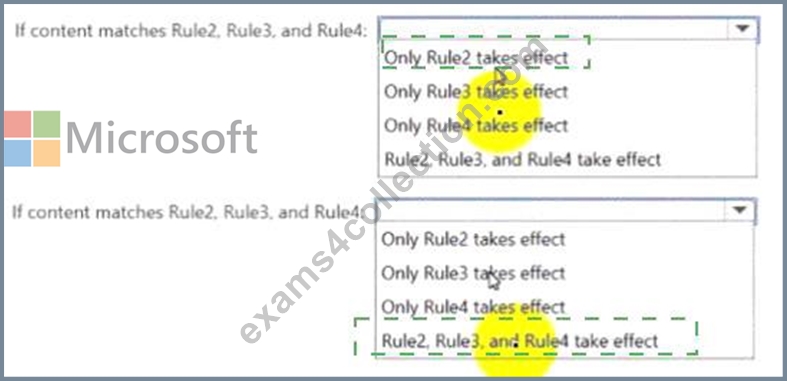
Explanation:
NEW QUESTION # 187
You have a Microsoft 365 E5 subscription that contains a user named User1.
You deploy Microsoft Purview Data Security Posture Management for AI (DSPM for AI).
You need to ensure that User1 can verify the auditing status of the subscription. The solution must follow the principle of least privilege.
To which role group should you add User1?
- A. Security Reader
- B. View-Only Organization Management for Microsoft Exchange Online
- C. Insider Risk Management Analysts
- D. Insider Risk Management Investigators
Answer: B
Explanation:
Permissions for Data Security Posture Management for AI
Note: Roles and role groups that can view, create, and edit in Data Security Posture Management for AI:
Microsoft Entra ID Compliance Administrator role
Microsoft Entra ID Global Administrator role
Microsoft Purview Compliance Administrator role group
Roles and role groups that can view-only in Data Security Posture Management for AI:
Microsoft Purview Security Reader role group
Reference:
https://learn.microsoft.com/en-us/purview/ai-microsoft-purview-permissions
NEW QUESTION # 188
You have a Microsoft 365 subscription.
You need to customize encrypted email for the subscription. The solution must meet the following requirements.
- Ensure that when an encrypted email is sent, the email includes the
company logo.
- Minimize administrative effort.
Which PowerShell cmdlet should you run?
- A. Set-IRMConfiguration
- B. Set-RMSTemplate
- C. New-OMEConfiguration
- D. Set-OMEConfiguration
Answer: D
Explanation:
To customize encrypted email in Microsoft 365, including adding a company logo, you need to modify the Office Message Encryption (OME) branding settings. The Set-OMEConfiguration PowerShell cmdlet allows you to configure branding elements such as:
- Company logo
- Custom text
- Background color
This cmdlet is used to update existing OME branding settings, ensuring that encrypted emails sent from your organization include the required customizations.
NEW QUESTION # 189
Hotspot Question
You have a Microsoft 365 sensitivity label that is published to all the users in your Microsoft Entra tenant as shown in the following exhibit.
For each of the following statements, select Yes if the statement is true. Otherwise, select No.
Answer:
Explanation:
Explanation:
Statement 1 - No. The sensitivity label includes content marking (watermark: INTERNAL), but it only applies to documents where the label is manually or automatically applied, not to all documents by default.
Statement 2 - No. The sensitivity label only specifies a watermark, not a header. If a header marking was configured, it would explicitly appear in the label settings.
Statement 3 - No. There is no indication that auto-labeling is configured to apply the label only to documents with the word "rebranding". Auto-labeling is an optional setting that needs explicit configuration.
NEW QUESTION # 190
You have a Microsoft 365 E5 subscriptions.
You deploy Microsoft Purview Data Security Posture Management for Al (DSPM for Al).
You need to edit the default policies created as part of the deployment.
Which two Microsoft Purview solutions should you use? Each correct answer presents part of the solution.
NOTE: Each correct selection is worth one point.
- A. Data Lifecycle Management
- B. Insider Risk Management
- C. Data Loss Prevention
- D. DSPMforAI
- E. Information Barriers
- F. Information Protection
- G. Compliance Manager
Answer: C,F
NEW QUESTION # 191
You have a Microsoft 365 tenant.
You have a database that stores customer details. Each customer has a unique 13-digit identifier that consists of a fixed pattern of numbers and letters.
You need to implement a data loss prevention (DLP) solution that meets the following requirements:
*Email messages that contain a single customer identifier can be sent outside your company.
*Email messages that contain two or more customer identifiers must be approved by the company's data privacy team.
Which two components should you include in the solution? Each correct answer presents part of the solution.
NOTE: Each correct selection is worth one point.
- A. a retention label
- B. a DLP policy
- C. a sensitive information type
- D. a mail flow rule
- E. a sensitivity label
Answer: B,C
Explanation:
You need to define a custom sensitive information type that recognizes the unique 13-digit identifier format for customer records. Microsoft Purview DLP policies use these types to identify and protect sensitive data.
A Data Loss Prevention (DLP) policy is required to enforce the rules. It will allow emails with a single identifier but trigger an approval workflow when two or more identifiers are detected.
NEW QUESTION # 192
HOTSPOT
You have a Microsoft 365 E5 subscription that contains the users shown in the following table.
You plan to create a Microsoft Purview insider risk management case named Case1.
Which insider risk management object should you select first, and which users will be added as contributors for Case1 by default?
To answer, select the appropriate options in the answer area.
NOTE: Each correct selection is worth one point.
Answer:
Explanation:
Explanation:
Box 1: When creating a Microsoft Purview Insider Risk Management case, you must first select a risky user to investigate. The case will be built around this specific user's activities, linking alerts and risk signals to the investigation.
Box 2: The Insider Risk Management role groups determine who can access and contribute to cases:
# Admin1 (Insider Risk Management Admins) # Full admin access.
# Admin2 (Insider Risk Management Analysts) # Analysts who review cases.
# Admin3 (Risk Management Investigators) # Investigators who work on cases.
# Admin4 (Insider Risk Management Auditors) # Auditors who oversee cases.
All these roles have default access to insider risk cases in Microsoft Purview, so all four admins are added as contributors.
NEW QUESTION # 193
You have a Microsoft 365 £5 subscription.
You are implementing insider risk management.
You need to create an insider risk management notice template and format the message body of the notice template.
How should you configure the template? To answer, select the appropriate options in the answer area.
NOTE: Each correct selection is worth one point.
Answer:
Explanation:
Explanation:
Step 1 - Where to configure Insider Risk Management notices
Insider risk management notices are part of the Microsoft Purview Insider Risk Management solution.
They are created and managed within the Microsoft Purview compliance portal.
The Microsoft 365 admin center, Microsoft Defender portal, or Microsoft Entra admin center are not used for notice templates.
Therefore, the correct choice for the portal is: Microsoft Purview portal.
Step 2 - Supported formats for notice templates
When creating an Insider Risk Management notice template, Microsoft Purview allows customization of the message body in HTML format.
HTML provides rich text formatting (fonts, colors, links, branding).
Markdown, RTF, and XML are not supported options for Purview notice templates.
Therefore, the correct format is: HTML.
Step 3 - Microsoft Reference
Microsoft documentation states:
"Notice templates are created and managed in the Microsoft Purview compliance portal. The body of the notice message is authored in HTML format to allow for full customization." Reference: Create insider risk management notice templates in Microsoft Purview
NEW QUESTION # 194
HOTSPOT
You have a Microsoft 365 E5 subscription.
You need to implement a compliance solution that meets the following requirements:
# Captures clips of key security-related user activities, such as the exfiltration of sensitive company data.
# Integrates data loss prevention (DLP) capabilities with insider risk management.
What should you use for each requirement? To answer, select the appropriate options in the answer area.
NOTE: Each correct selection is worth one point.
Answer:
Explanation:
Explanation:
Captures clips of key security-related user activities
This requirement refers to recording and surfacing evidence of risky user behavior (e.g., copying sensitive files to USB, uploading to cloud storage, or exfiltrating data).
In Microsoft Purview Insider Risk Management, this is achieved through Forensic evidence, which allows capturing screenshots/clips of user activities on endpoints when a policy is triggered.
Ref: Microsoft Learn - Insider risk forensic evidence
Integrates DLP capabilities with insider risk management
Microsoft introduced Adaptive Protection as part of Purview Insider Risk.
Adaptive Protection uses insider risk signals and DLP together, dynamically adjusting DLP controls (block, restrict, monitor) based on the user's risk level.
This integration reduces false positives and ensures risky users are monitored more strictly while low-risk users are less impacted.
Ref: Microsoft Learn - Adaptive Protection in Microsoft Purview
Other options ruled out:
Adaptive scopes: Used for defining policy targeting groups dynamically, not capturing activities.
Classifiers/Trainable classifiers: Used for content classification, not exfiltration capture or DLP integration.
eDiscovery (Premium): For legal investigations, not insider risk + DLP integration.
Records management: Lifecycle retention, not related to insider risk.
NEW QUESTION # 195
You create a retention label policy named Contoso_Policy that contains the following labels:
* 10 years then delete
* 5 years then delete
* Do not retain
Contoso.Policy is applied to content in Microsoft SharePoint Online sites.
After a couple of days, you discover the following messages on the Properties page of the label policy:
* Status: Off (Error)
* It's taking longer than expected to deploy the policy
You need to reinitiate the policy.
How should you complete the command? To answer, select the appropriate options in the answer area.
NOTE: Each correct selection is worth one point.
Answer:
Explanation:
Explanation:
NEW QUESTION # 196
You have a Microsoft 365 E5 subscription.
You need to identify documents that contain patent application numbers containing the letters PA followed by eight digits, for example, PA 12345678. The solution must minimize administrative effort.
What should you do? To answer, select the appropriate options in the answer area.
NOTE: Each correct selection is worth one point.
Answer:
Explanation:
Explanation:
Box 1: Since you are looking for a specific pattern (PA followed by eight digits, e.g., PA 12345678), the best classification method is Sensitive Info Type. Sensitive Info Types allow pattern-based matching to identify structured data. Exact Data Match (EDM) is not needed because you're not comparing against a fixed dataset.
Trainable classifier is not appropriate because this is a structured pattern, not an unstructured document classification.
Box 2: Since PA 12345678 follows a structured pattern, the most effective method is Regular Expression (Regex). A Regular Expression (Regex) can be written to match "PA" followed by exactly eight digits (e.g., PA\s\d{8}). Keyword dictionary is not ideal because it works for predefined words, not number patterns.
Function is unnecessary because there is no need for checksum validation or predefined validation rules.
NEW QUESTION # 197
You have a Microsoft 365 E5 subscription.
You plan to implement Microsoft Purview insider risk management.
You need to recommend policy templates that meet the following requirements:
* Contain risk indicators and scoring for when a user receives a poor performance review
* Contain risk indicators and scoring for when a user disables security features on a device.
Which template should you use for each requirement? To answer, select the appropriate options in the answer area.
NOTE: Each correct selection is worth one point.
Answer:
Explanation:
Explanation:
NEW QUESTION # 198
Hotspot Question
You have a Microsoft SharePoint Online site named Site1 that contains the files shown in the following table.
You have a data loss prevention (DLP) policy named DLP1 that has the advanced DLP rules shown in the following table.
You apply DLP1 to Site1.
For each of the following statements, select Yes if the statement is true. Otherwise, select No.
NOTE: Each correct selection is worth one point.
Answer:
Explanation:
Explanation:
Box 1: No
File1 has two IP addresses in it.
Both Tip2 and Tip3 rules matches. Tip2 has higher priority.
Note: For the hosted service workloads, like Exchange Online, SharePoint Online and OneDrive for Business, each rule is assigned a priority in the order in which it's created. That means, the rule created first has first priority, the rule created second has second priority, and so on.
When content is evaluated against rules, the rules are processed in priority order. If content matches multiple rules, the first rule evaluated that has the most restrictive action is enforced.
Box 2: Yes
File2 has six IP addresses in it.
Only Rule3 matches.
Box 3: Yes
File3 has four IP addresses in it.
Both Rule2 and Rule3 matches.
Rule2 has higher priority.
Reference:
https://learn.microsoft.com/en-us/microsoft-365/compliance/dlp-policy-reference
NEW QUESTION # 199
Case Study 1 - Contoso, Ltd
Overview
Contoso, Ltd. is a consulting company that has a main office in Montreal and three branch offices in Seattle, Boston, and Johannesburg.
Existing Environment
Microsoft 365 Environment
Contoso has a Microsoft 365 E5 tenant. The tenant contains the administrative user accounts shown in the following table.
Users store data in the following locations:
- SharePoint sites
- OneDrive accounts
- Exchange email
- Exchange public folders
- Teams chats
- Teams channel messages
When users in the research department create documents, they must add a 10-digit project code to each document. Project codes that start with the digits 999 are confidential.
SharePoint Online Environment
Contoso has four Microsoft SharePoint Online sites named Site1, Site2, Site3, and Site4.
Site2 contains the files shown in the following table.
Two users named User1 and User2 are assigned roles for Site2 as shown in the following table.
Site3 stores documents related to the company's projects. The documents are organized in a folder hierarchy based on the project.
Site4 has the following two retention policies applied:
- Name: Site4RetentionPolicy1
Locations to apply the policy: Site4
Delete items older than: 2 years
Delete content based on: When items were created
- Name: Site4RetentionPolicy2
Locations to apply the policy: Site4
Retain items for a specific period: 4 years
Start the retention period based on: When items were created
At the end of the retention period: Do nothing
Problem Statements
Management at Contoso is concerned about data leaks. On several occasions, confidential research department documents were leaked.
Requirements
Planned Changes
Contoso plans to create the following data loss prevention (DLP) policy:
- Name: DLPpolicy1
Locations to apply the policy: Site2
Conditions:
Content contains any of these sensitive info types: SWIFT Code
- Instance count: 2 to any
Actions: Restrict access to the content
Technical Requirements
Contoso must meet the following technical requirements:
- All administrative users must be able to review DLP reports.
- Whenever possible, the principle of least privilege must be used.
- For all users, all Microsoft 365 data must be retained for at least
one year.
- Confidential documents must be detected and protected by using
Microsoft 365.
- Site1 documents that include credit card numbers must be labeled
automatically.
- All administrative users must be able to create Microsoft 365
sensitivity labels.
- After a project is complete, the documents in Site3 that relate to
the project must be retained for 10 years.
Hotspot Question
You are reviewing policies for the SharePoint Online environment.
For each of the following statements, select Yes if the statement is true. Otherwise, select No.
NOTE: Each correct selection is worth one point.
Answer:
Explanation:
Explanation:
Understanding Site4's Retention Policies:
- Site4RetentionPolicy1 deletes items older than 2 years from creation. If a file was created on January 1, 2021, it would be deleted after January 1, 2023.
- Site4RetentionPolicy2 retains files for 4 years from creation. If a file was created on January 1,
2021, it will be kept until January 1, 2025, but not deleted after that (policy states "Do nothing").
Box 1 - Yes, because Site4RetentionPolicy2 ensures files are retained for 4 years.
Box 2 - Yes, because Site4RetentionPolicy2 retains the file for 4 years (until January 1, 2025).
Box 3 - No, because retention is only for 4 years (until January 1, 2025). After that, the policy does "nothing," meaning the file is no longer recoverable after that period.
NEW QUESTION # 200
You need to test Microsoft Purview Advanced Message Encryption capabilities for your company. The test must verify the following information:
* The acquired default template names
* The encryption and decryption verification status
Which PowerShell cmdlet should you run?
- A. Test-Mailflow
- B. Test-ClientAccessRule
- C. Test-OAuthConnectivity
- D. Test-IRMConfiguration
Answer: D
Explanation:
To test Microsoft Purview Advanced Message Encryption (which relies on Azure Information Rights Management), you use the Test-IRMConfiguration cmdlet. It verifies configuration, template availability, and encryption/decryption status.
Test-OAuthConnectivity # tests OAuth authentication.
Test-ClientAccessRule # tests client access rules.
Test-Mailflow # tests mail routing.
Reference: Test-IRMConfiguration cmdlet
NEW QUESTION # 201
You have a Microsoft 365 E5 subscription. The subscription contains a user named User1 and the sensitivity labels shown in the following table.
You publish the labels to User1.
The subscription contains the files shown in the following table.
Which files can Microsoft 365 Copilot summarize for User1?
- A. File1, File2. and File3
- B. File2only
- C. File2 and File3 only
- D. File3 only
Answer: B
NEW QUESTION # 202
......
Pass Microsoft SC-401 Premium Files Test Engine pdf - Free Dumps Collection: https://www.exams4collection.com/SC-401-latest-braindumps.html
SC-401 Exam Info and Free Practice Test | Exams4Collection: https://drive.google.com/open?id=1jGzuP9KLkrV3rgG4Zoa70Rz6TSSSoQBN
